There is an official Frappe-maintained Docker setup, but it is quite complicated. That complexity is understandable - it tries to support multiple use cases. If you truly understand the setup, there's no doubt it's reliable and production-ready.
For my case, I want a simple, straightforward setup that is still performant and reliable.
Understanding Frappe Images
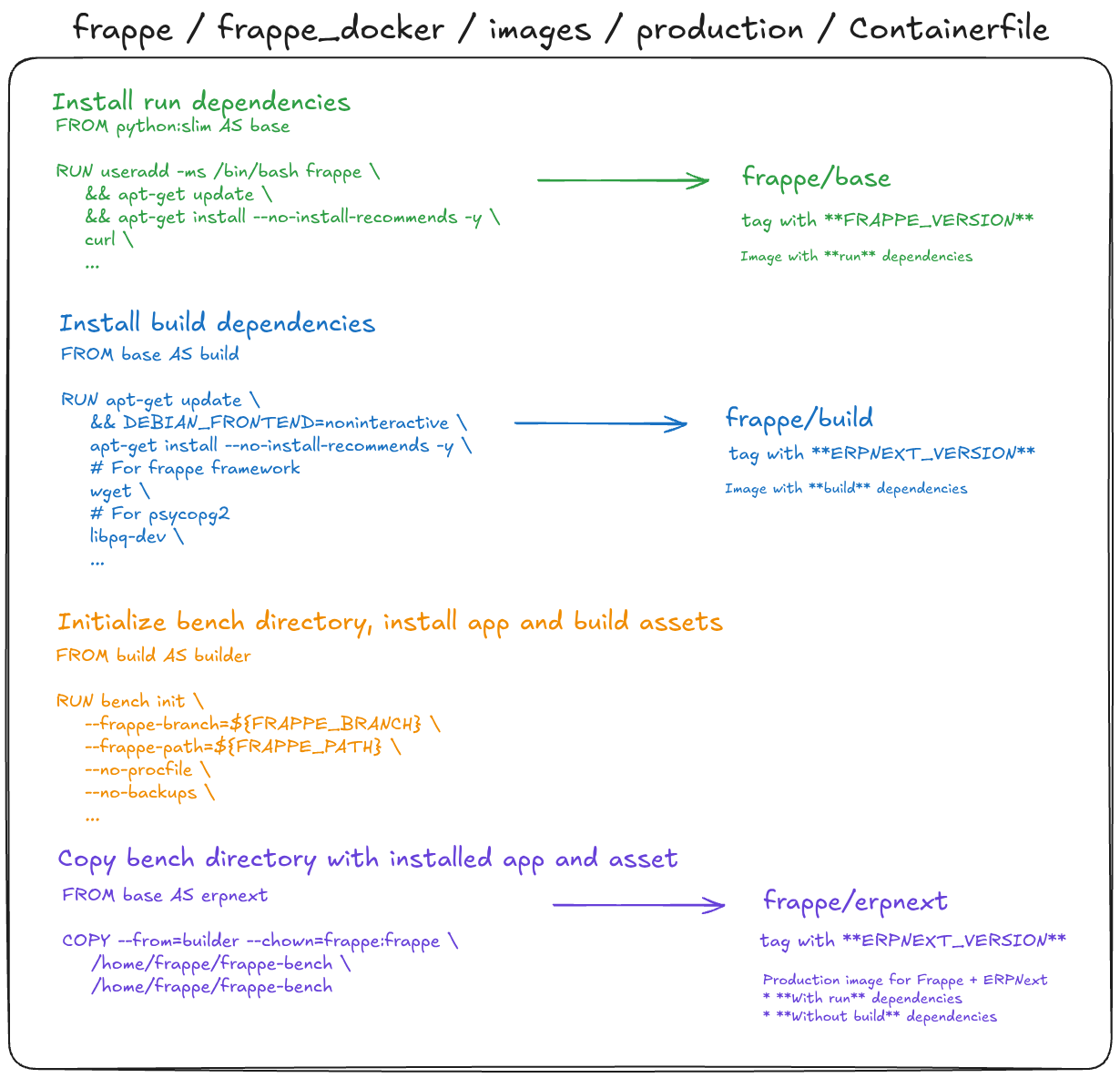
Frappe publishes three pre-built images to Docker Hub, each serving a different purpose:
- frappe/base - Image with run dependencies only
- frappe/build - Image with build dependencies on top of base
- frappe/erpnext - Image with run dependencies + Frappe & ERPNext apps installed
| Image | Tagged by | Run Deps. | Build Deps. | Apps Frappe & ERPNext |
|---|---|---|---|---|
| frappe/base | FRAPPE_VERSION | ✅ | ❌ | ❌ |
| frappe/build | ERPNEXT_VERSION | ✅ | ✅ | ❌ |
| frappe/erpnext | ERPNEXT_VERSION | ✅ | ❌ | ✅ |
For a production image, you need two things: run dependencies and installed apps. Build dependencies are only needed during the build process and should not be included in the final image - they add unnecessary size.
There are multiple ways to build a production-ready image:
- Frappe Official Production Images - This produces the
frappe/erpnextimage that Frappe builds and pushes to Docker Hub. Thefrappe/baseandfrappe/buildimages are also built from this file but are helper images used during the build process. - Frappe Official Layered Images - This image is built by using
frappe/buildas a builder stage and copying the app artifacts into a cleanfrappe/baseimage. - Frappe Official Custom Images - This is almost identical to the production image. It could be used when a high level of customization is needed.
Essentially, the build process comes down to these steps:
- Start from
python:slim, install run dependencies, save asbase - From
base, install build dependencies, save asbuild - From
build, initialize bench and install apps - the bench folder is the build artifact that will be copied into the base image - From
base, copy the bench folder artifact into the image - this is your final production image
This multi-stage approach keeps the final image lean by discarding the build tools after the apps are compiled and installed.
Technical Details
The Dockerfile for all three images lives in images/production.
It is triggered by docker-build-push.yml. The workflow uses docker/bake-action, which reads the docker-bake.hcl file to determine what to build.
In that docker-bake.hcl you'll find the Dockerfile targets and image tags for each image variant.
Our Image
Why?
Frappe already publishes official images, so why build another one?
Faster custom image build time
When you need to add a custom app on top of ERPNext, the official approach requires you to re-initialize bench and reinstall Frappe & ERPNext from scratch on every build. This is slow - bench initialization and app installation can take several minutes each time.
Our image pre-bakes bench initialization and the Frappe & ERPNext installation into a reusable base. Your custom image build only needs to install your custom app on top, which will be faster.
Clear starting point with explicit versions
With specific version tags, you know exactly which version of Frappe and ERPNext you're building on. There's no ambiguity about what's inside the image.
Cons
Larger image size
Our image is larger than the official image - around 1 GB compared to the official ~500 MB. This is because we include build dependencies alongside the run dependencies and installed apps.
However, we don't use this image directly in production. It's used only as a builder stage in a multi-stage Dockerfile. The final production image is built by copying the bench folder from our image into a clean frappe/base, so the final size ends up comparable to the official image.
| Image | Tagged by | Run Deps. | Build Deps. | Apps Frappe & ERPNext |
|---|---|---|---|---|
| thspacecode/erpnext-docker | FRAPPE_ERPNEXT_VERSION | ✅ | ✅ | ✅ |
The Image
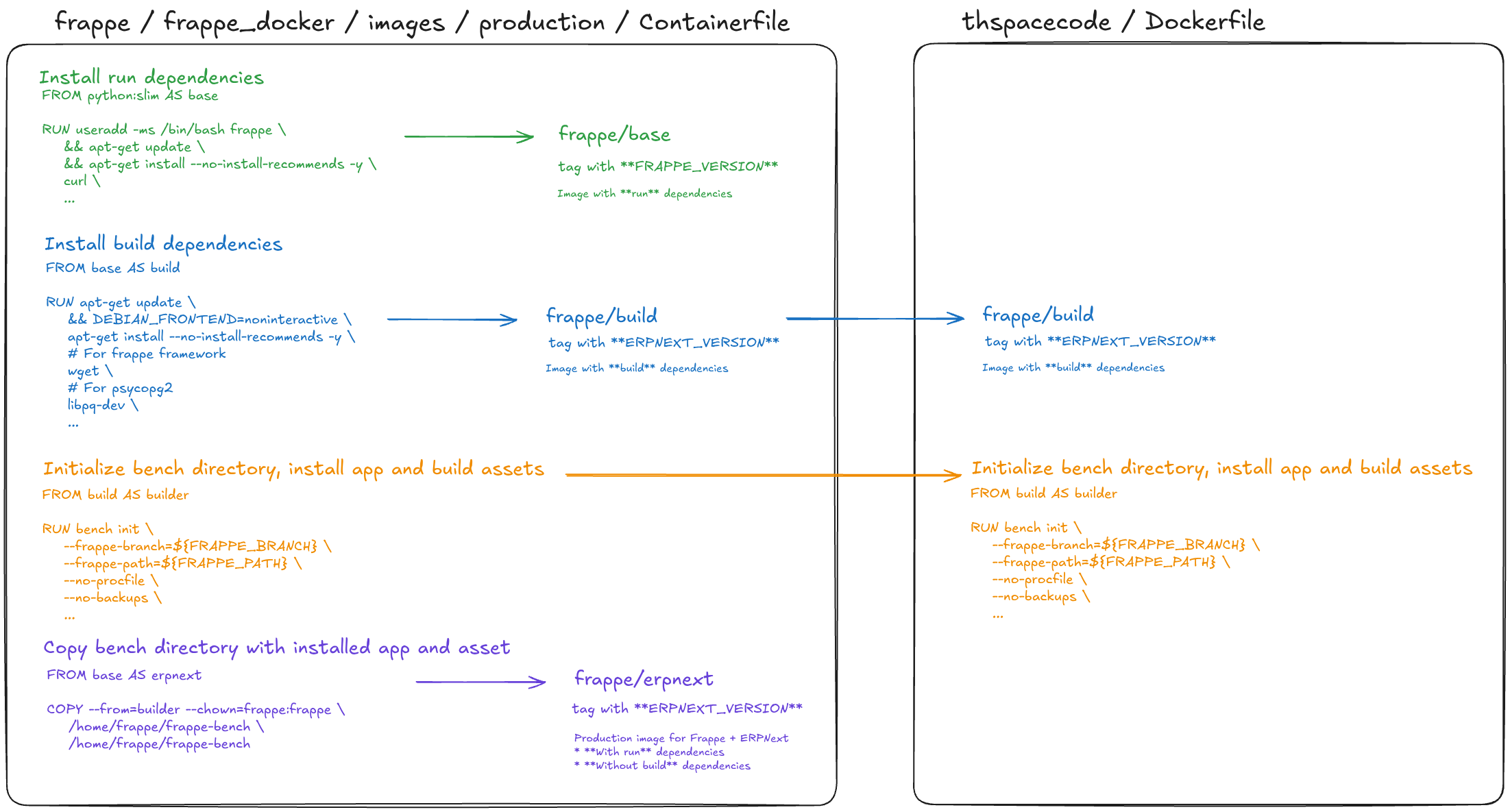
Based on the official image, we initialize bench and install Frappe & ERPNext, run a simple test to verify the image can start the web service, and then push the result to Docker Hub. This gives us a reliable, version-pinned base that custom app builds can start from - without repeating the slow setup every time.