What does Socket.IO actually do in Frappe?
Without Socket.IO, ERPNext still works - but the experience drops from "live" to "refresh and hope." Here's what it powers:
- Notifications and alerts -
msgprintfrom server-side code shows up as toast messages, progress bars work during imports/exports, and background jobs can report status back to the user. - Live document collaboration - you get "X is currently viewing this document" indicators (
doc_viewers), and forms update in real-time when another user saves the same record. - Auto-refreshing lists - list views update automatically when records are created, modified, or deleted. No manual page reload needed.
- Background job feedback -
frappe.enqueue()jobs can push progress updates to the browser, and build processes (like asset compilation) can report success or failure.
If Socket.IO is broken, none of this works. Users have to manually refresh to see changes, progress bars sit idle, and there's zero awareness of other users editing the same document.
System Overview

There are 4 main services involved in the ERPNext / Frappe Socket.io system. Understanding how they interact is key to debugging real-time issues.
Related files (main ones):
frappe/frappe/public/js/frappe/socketio_client.js- the browser-side Socket.io clientfrappe/socketio.js- the Node.js Socket.io serverfrappe/realtime/handlers.js- event handlers for incoming messagesfrappe/realtime/middlewares/authenticate.js- authentication middleware for socket connections
frappe/frappe/realtime.py- Python-side API for publishing real-time events
Checking if the whole system works
The quickest way to verify the real-time system is working end-to-end is to publish a test message. Open a bench console and run:
frappe.publish_realtime(event="msgprint", message={"message": "Hello!"}, user="Administrator")
Note: Replace
"Administrator"with the email of the user you are currently logged in as on the frontend. The message will only appear for that specific user.
If everything is working, you should see the "Hello!" message pop up on the frontend.
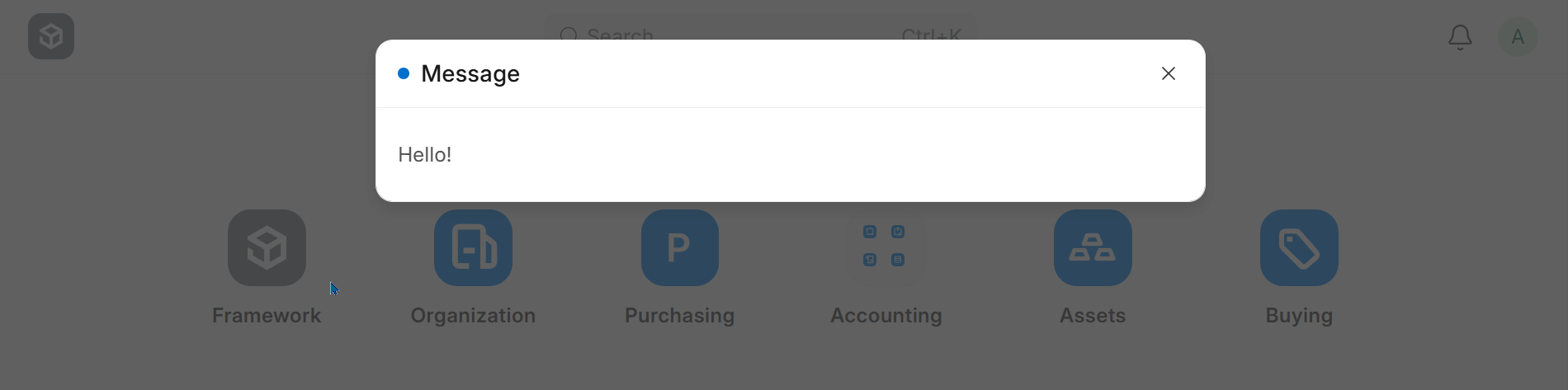
This simple test requires a lot of things to work properly
What looks like a simple message actually passes through multiple services. If it doesn't show up, the failure could be at any point in the chain. Let's break down what happens under the hood.
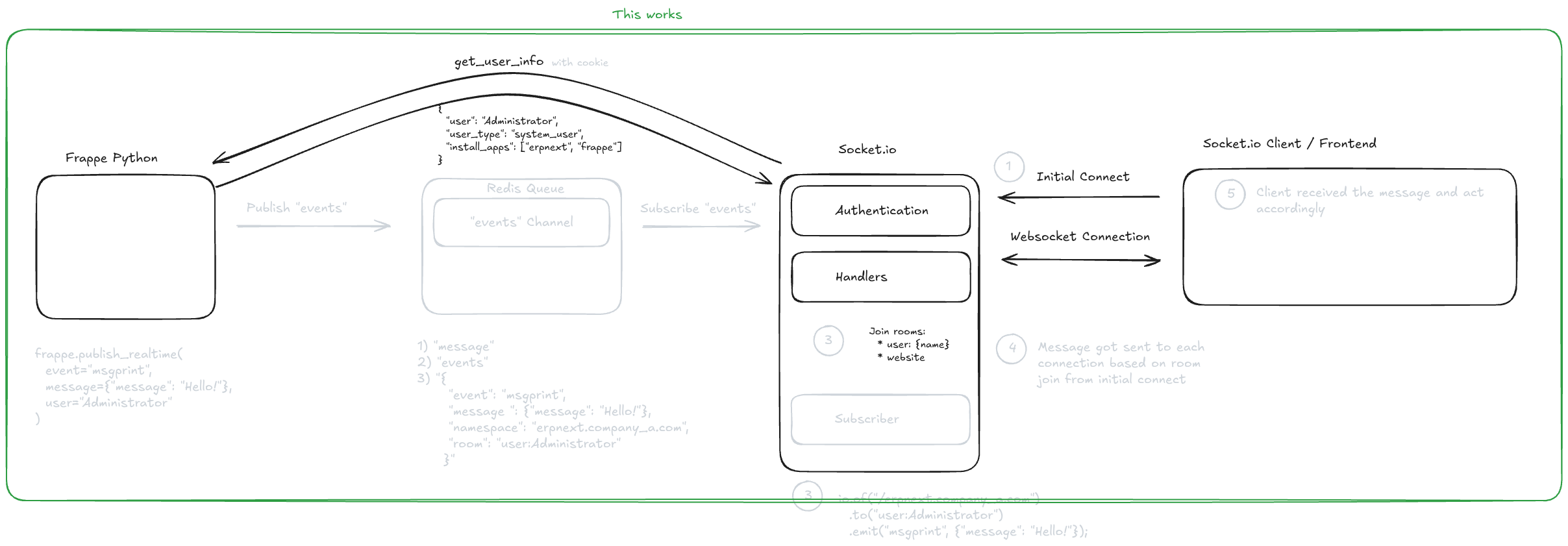
Initial Connect
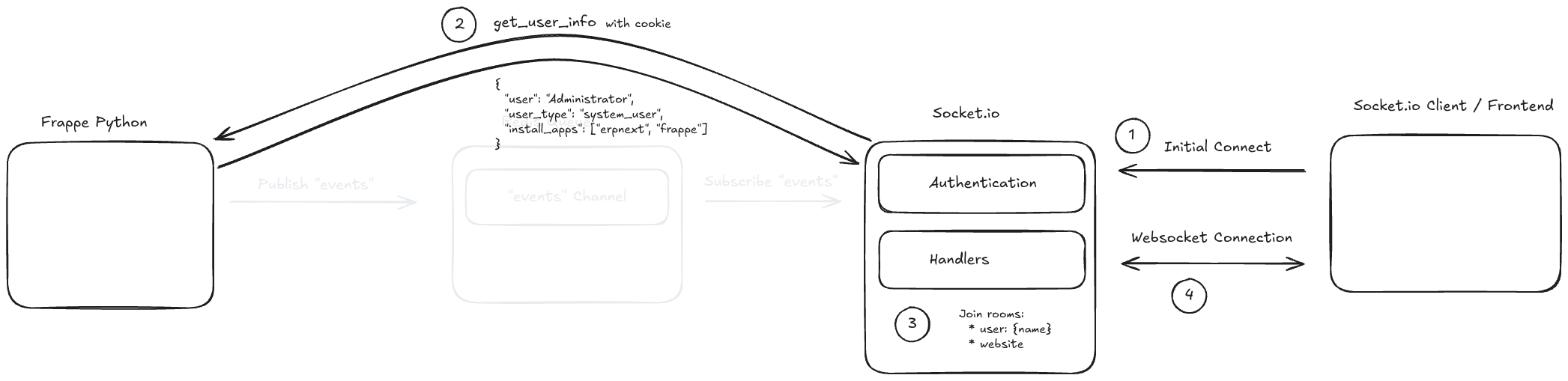
On the initial connection, Frappe uses cookies to identify the user and automatically joins the appropriate Socket.io rooms. This means the browser must have valid session cookies, and the Socket.io server must be able to read them. If cookies are missing or invalid (for example, due to a redirect stripping them), the user will be treated as a guest.
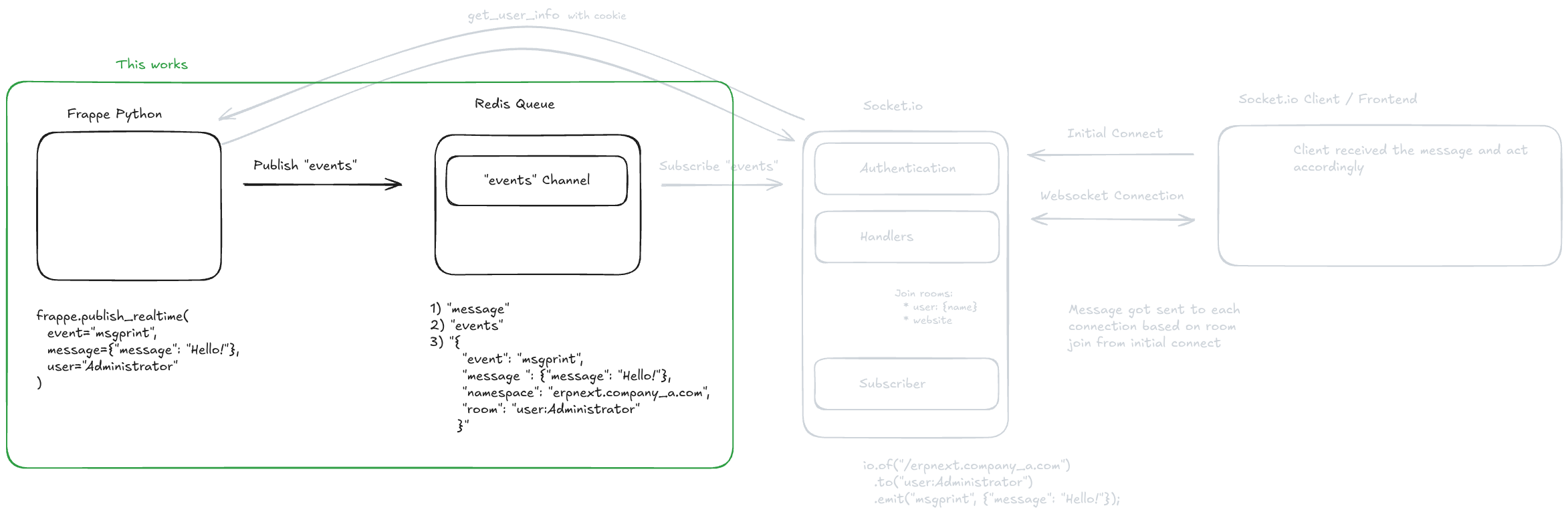
Publish from Python
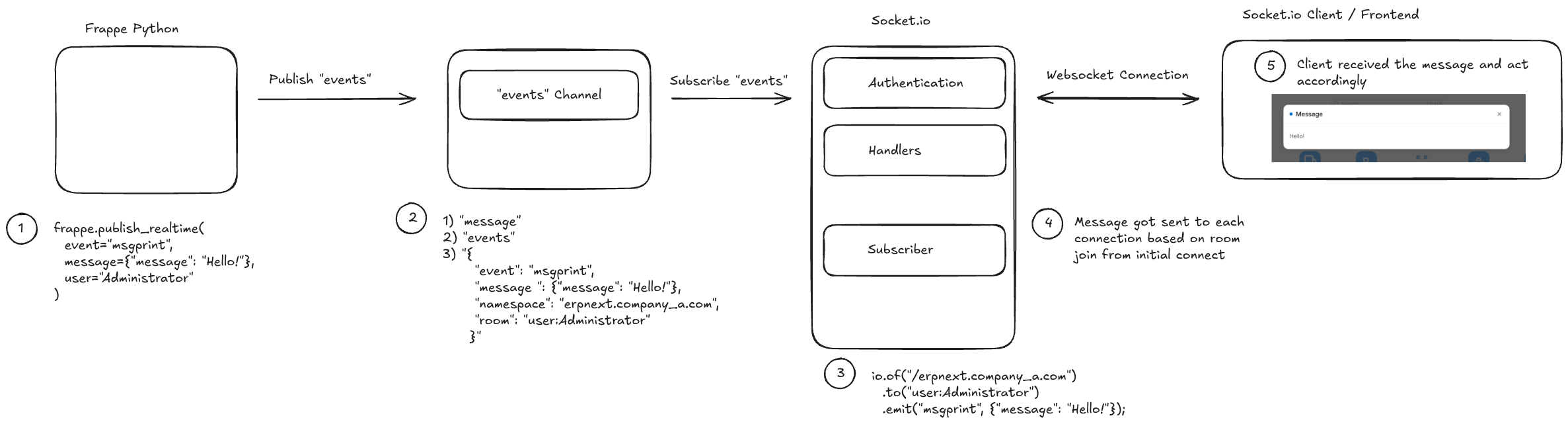
The publish flow works like this:
- Python publishes an event to Redis via
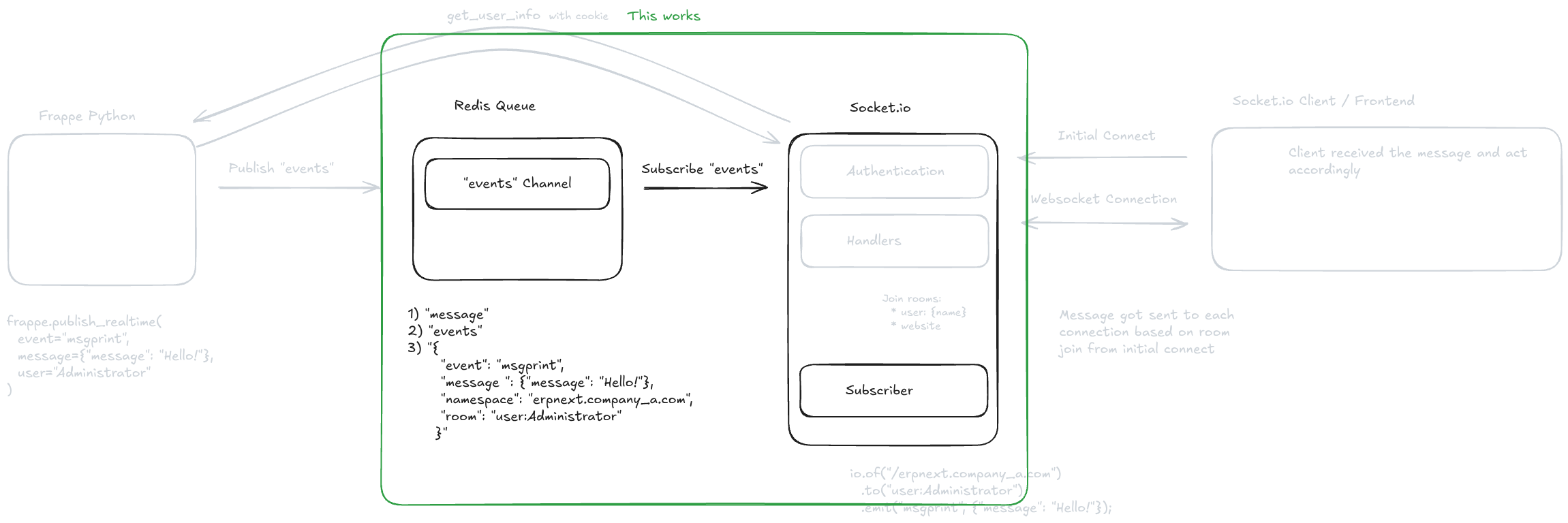
frappe.publish_realtime() - Socket.io subscribes to the Redis
eventschannel and picks up the message - Socket.io broadcasts the message to the correct room/channel
- The client receives the message and acts on it (e.g., displaying a notification)
This is a classic pub/sub pattern with Redis acting as the message broker between the Python backend and the Node.js Socket.io server.
Debugging ERPNext / Frappe Socket.io
If you tried the publish test above and it works - congrats, your real-time system is healthy. If not, here's a systematic approach to finding the problem.
My setup uses Docker containers. If you use a different environment, you'll need to adjust the commands accordingly, but the debugging approach remains the same.
There are 4 main areas to check, and it's best to work through them in order since each one builds on the previous:
- Socket.io connection - Can the browser connect to the Socket.io server?
- Publish event (from Python) - Can Python publish messages to Redis?
- Subscribe event (from Node.js / Socket.io) - Can the Socket.io server receive messages from Redis?
- Authentication & room joining - Is the user authenticated correctly, and are they joining the right rooms?
Socket connection
Open your browser's developer console and run these checks.
Check A: Verify the connection status.
frappe.socketio.socket.connected - this should return true.
Check B: Verify two-way communication with a ping/pong test.
frappe.socketio.socket.on('pong', () => console.log('Confirmed, socket.io connection works.'));
frappe.socketio.socket.emit('ping');
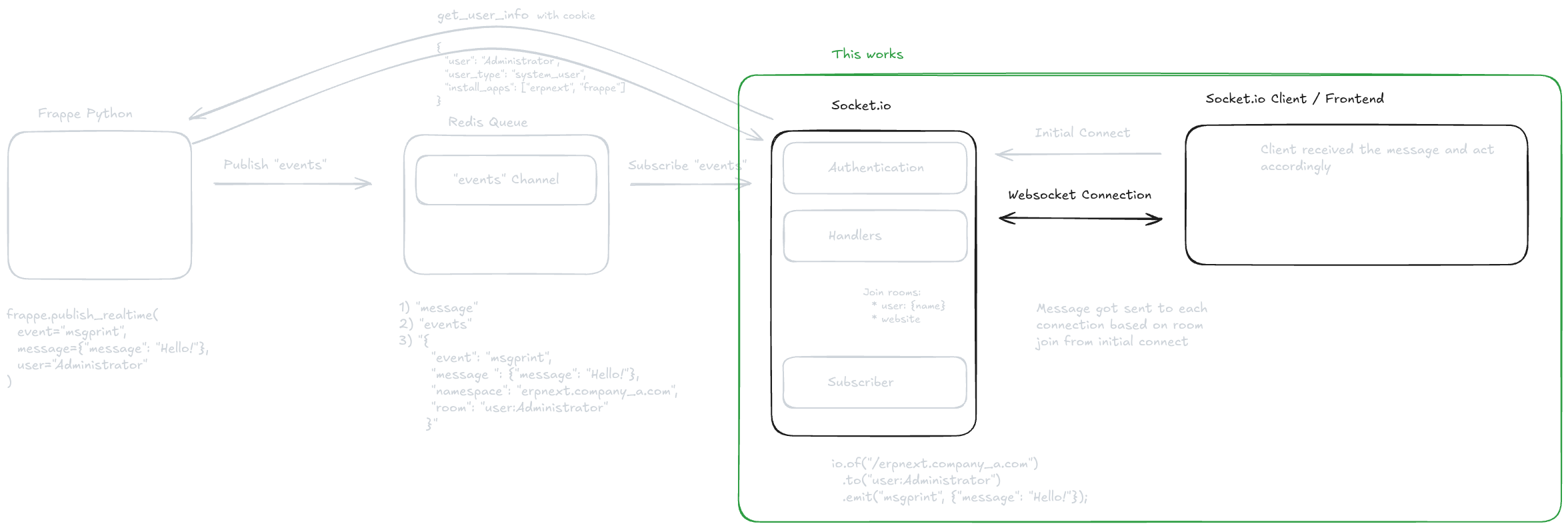
You should see Confirmed, socket.io connection works. in the console. If you do, the Socket.io client has successfully connected to the server, and messages can flow in both directions.
Note: This works because there's a dedicated ping/pong handler inside
frappe/realtime/handlers.jsthat responds topingevents from the client.
Publish event (from Python)
This step verifies that Python can publish events to Redis. You'll need 2 terminals for this.
Terminal 1 - Subscribe to the Redis events channel:
Connect to your Redis instance via redis-cli. In my Docker setup, I connect to the Frappe container and run redis-cli -h fp-redis-queue (the -h hostname will differ based on your environment).
Once you see the fp-redis-queue:6479> prompt, run SUBSCRIBE events. The terminal will now wait for incoming messages.
Terminal 2 - Publish a test event:
Connect to the Frappe container, open bench console, and run:
frappe.publish_realtime(event="msgprint", message={"message": "Hello!"}, user="Administrator")
Back in Terminal 1, you should see output like this:
1) "message"
2) "events"
3) "{\n \"event\": \"msgprint\",\n \"message\": {\n  \"message\": \"Hello!\"\n },\n \"namespace\": \"staging.erpnext.summitindustech.com\",\n \"room\": \"user:Administrator\"\n}"
If this works, you've confirmed that Python can successfully publish events to Redis. The problem lies further down the chain.
Subscribe event (from Node.js / Socket.io)
This step verifies that the Socket.io server can receive messages from Redis. We'll run a small Node.js script directly inside the Socket.io container that mimics what the server does.
Terminal 1 - Run the subscriber script:
docker exec -it frappe_socketio_container node -e "
const { get_redis_subscriber } = require('/home/frappe/frappe-bench/apps/frappe/node_utils');

(async () => {
    try {
        const subscriber = get_redis_subscriber();
        await subscriber.connect();
        console.log('Redis connected');
        subscriber.subscribe('events', (message) => {
            message = JSON.parse(message);
            let namespace = '/' + message.namespace;
            console.log('GOT:', {
              message: message,
              namespace: namespace,
            });
        });
        console.log('Subscribed OK');
        setTimeout(() => process.exit(), 15000);
    } catch (e) {
        console.error('FAILED:', e);
        process.exit(1);
    }
})();
"
Terminal 2 - Publish the same test event:
Connect to the Frappe container, open bench console, and run:
frappe.publish_realtime(event="msgprint", message={"message": "Hello!"}, user="Administrator")
You should see this in Terminal 1:
Redis connected
Subscribed OK
GOT: {
  message: {
    event: 'msgprint',
    message: { message: 'Hello!' },
    namespace: 'staging.erpnext.summitindustech.com',
    room: 'user:Administrator'
  },
  namespace: '/staging.erpnext.summitindustech.com'
}
Note: This script only proves that Redis pub/sub works from the Node.js side. It can't deliver messages to browser clients because it's a standalone Redis subscriber, not an actual Socket.io server with connected clients.
This confirms that the Socket.io server can subscribe to and receive Redis events. If this works but the browser still doesn't receive messages, the issue is likely with authentication or room joining.
Middleware & websocket room joining
If all the previous checks pass, the problem is most likely with authentication or room assignment. The user might be connecting as a guest instead of their actual account, which means they join the wrong rooms and never receive their messages.
Socket.IO has a built-in debug mode you can enable. Here are the common DEBUG values:
| Value | Shows |
|---|---|
socket.io:socket | Room joins/leaves, emits per socket |
socket.io:server | Namespace creation, connections |
socket.io* | Everything (very verbose) |
To enable debug logging, update your Docker Compose configuration:
fp-websocket:
 <<: *frappe-base
+ environment:
+   - DEBUG=socket.io:socket
  command:
    - /bin/sh
    - -c
    - sleep 20 && node /home/frappe/frappe-bench/apps/frappe/socketio.js
After restarting the service, check the Socket.io logs. You should see something like:
socket.io:socket joining room user:Administrator
socket.io:socket joining room all
The key thing to look for is which user is joining which room. Reload the client and verify the logs show the correct user joining the room, not guest. If you see guest instead of the expected user, authentication is failing.
Note: There could be a lot of noise in the logs if the server is heavily used. You may want to test on a staging environment.
Conclusion
In my case, after working through these debugging steps, I found that sockets were joining incorrect rooms. When Socket.io called get_user_info, it returned guest instead of the actual user.
The root cause turned out to be an HTTP-to-HTTPS redirect that was stripping the session cookies. When the Socket.io server made an internal request to verify the user, the redirect lost the cookie headers, so the server treated every connection as a guest.
The fix was adding a network alias to the Nginx container so that internal requests to the domain were served directly within the Docker network without going through the external redirect. This ensured cookies were preserved and the correct user was identified.